
Global Search
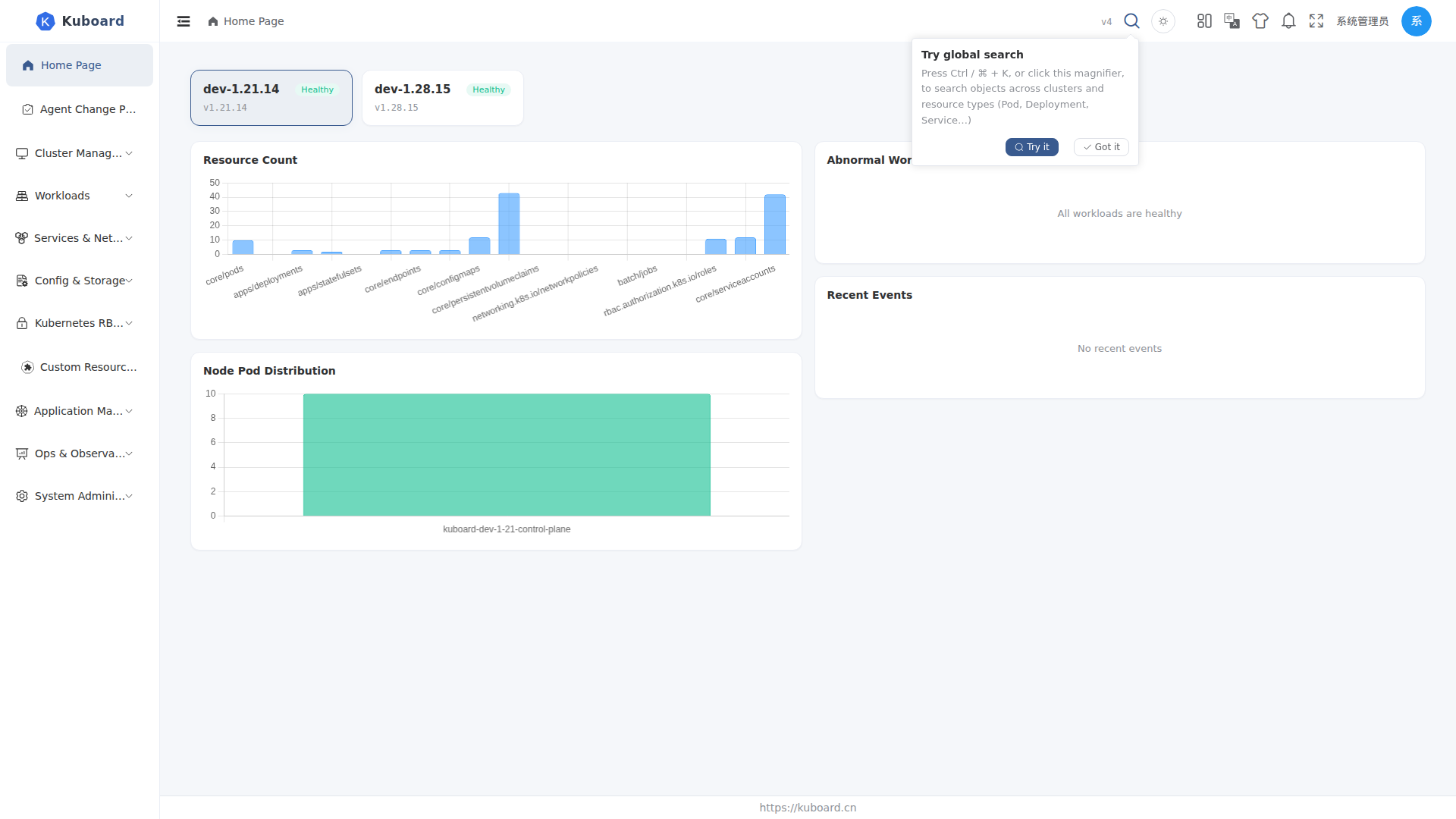
Press Ctrl+K (⌘K on Mac) or click the magnifier icon in the top toolbar to open global search and look up Kubernetes objects across clusters and resource types by name; type a keyword to locate and jump to an object.
Intended for operators and platform engineers who frequently look up objects across many clusters and namespaces; any account with at least one accessible cluster can use it.
Opening Search
| Method | Action |
|---|---|
| Shortcut | Press Ctrl+K (⌘K on Mac); it does not take effect inside editable areas such as inputs, terminals, or editors |
| Icon | Click the magnifier icon on the right side of the top toolbar |
| First-login guide | The first time you open it after signing in (and your account has an accessible cluster), a "Try global search" bubble appears next to the icon — click Try it to open search directly, or Got it to never show it again |
The overlay is laid out from top to bottom as: input field → scope bar (clusters / resource types) → result area → hint bar.
Search Scope
Global search matches by name containment (typing nginx also matches nginx-deploy) and follows these boundaries:
| Boundary | Description |
|---|---|
| Clusters | By default searches all clusters the current account can access; you can tick specific clusters in the scope bar |
| Resource types | By default searches all cached resource types; you can tick specific types in the scope bar |
| Permissions | Clusters / resource types without list permission are skipped automatically and never appear in results |
Why cached resource types only
Object data comes from the cache that the cluster syncs automatically (see Resource List Pages, "Cached vs Direct Data"). Resource types without sync configured are not covered by search; you can enable caching for a resource type in Settings → System Settings → Cluster Cache Settings, under "Caching resources settings".
Common types cached by default and covered by search: Pods, Deployments, StatefulSets, DaemonSets, Namespaces, Events, CRDs and more.
Usage Steps
- Press Ctrl+K (or click the magnifier) to open the search overlay;
- Type a keyword (up to 128 characters; the search runs automatically about 0.2 s after you stop typing);
- To narrow the scope, tick clusters or resource types on the right of the scope bar — unchecked means all; your selection is remembered and kept after a page refresh;
- Results are grouped by resource type; each group header reads "Kind · N of M" — when the hit count exceeds the displayed number, a View all → link appears at the end of the group; clicking it jumps to that type's list page;
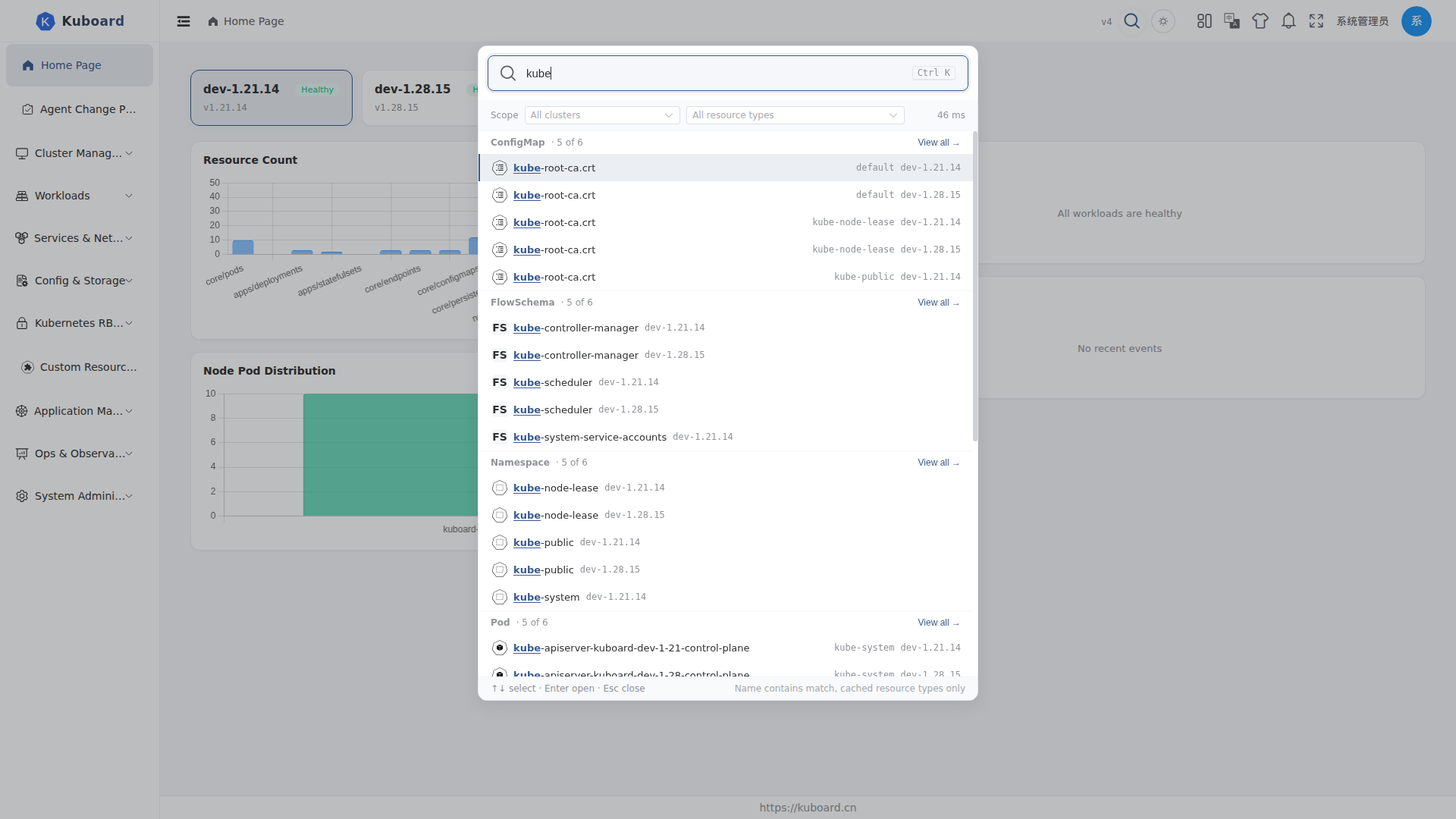
- Move between results with ↑ / ↓, open the selected object with Enter, close the overlay with Esc; you can also click a result row directly;
- Clicking a result locates the object in the following order:
| Destination | Behavior |
|---|---|
| Detail page | Resources with a detail page (e.g. Deployments, Pods) open the detail page directly |
| List page | Resources without a detail page (e.g. Endpoints) open that type's list page; the group header notes "No detail page · opens list" |
| Read-only YAML | Resources with neither a detail page nor a list page open as read-only YAML inside the overlay |
| Cannot open | When the current account lacks read permission, a hint is shown and nothing navigates |
Recently Visited
When the overlay opens with no keyword typed, it shows Recently visited — objects you have opened are recorded locally per account; click one to jump again. With no history it shows "Type a keyword to search".
FAQ
Cannot find the object you are looking for?
- Make sure the resource type has caching enabled (see "Search Scope") — uncached types are not covered;
- Make sure the current account has
listpermission on that cluster and type; - Global search matches by name containment only; it does not search labels, annotations, or field contents. The "Include label search" and "Advanced search" actions on the UI are reserved for future versions;
- Overly long keywords are truncated to 128 characters.
Results are empty but you want to widen the scope?
Click Search all clusters below the result area to clear the cluster selection and search all clusters again.
Why do result rows sometimes omit the cluster name?
When exactly one cluster is selected the name is not repeated; when several clusters are selected or the system has more than one cluster, each result row shows its cluster.